Back the information: 6 Kingston recommendations to make back up
Next March 31 is Back Up Day, and Kingston offers a series of tips to raise awareness about the importance of protecting information and having a backup.


Computer users may not be aware until it happens, but one of the worst things that can happen to them is not being able to access their data. This can happen for many reasons: theft, power outages, spilled liquids and the worst of all: data corruption, which means that the corresponding files suddenly become unusable. Whether it's beloved photos or classified files.
If the chosen files have not been backed up before, it may take a while the first time, but once this first step has been taken, regular backups will become a fairly simple task. This is why I share some simple and effective recommendations for making system backups that, I hope, will make the task much easier.
*Decide what data will be backed up. When deciding what to copy, the first thing that comes to mind is work or personal files. They can be photos, videos and documents that, if damaged, would be irreplaceable. You will also have the option to make backup copies of applications, programs and system settings of which you want to save a version. In turn, this will surely give you peace of mind that if anything were to happen to your system, you will always have an updated version at your fingertips.
*Planning. If you want to always have the most up-to-date versions of your files, then planning is essential. The pattern of your plan will depend largely on the contents you want to make a copy of. For personal files, a less periodic upload plan is appropriate due to the small volume of data created each month. On the other hand, backing up work data would require more frequent updates. Depending on your workload, it is advisable to make daily or weekly backups. We invite you to consult Kingston's guide on how to configure and schedule automatic backups in Windows and MacOS.
*Just a cloud backup is not enough. The cloud is possibly one of the easiest methods for backing up data, especially when it comes to phones and computer systems. The data collection system can be automated, which will make things easier for the user. Although it is a good method for backing up your data, it should not be the only option. Cloud companies are exposed to hacks and, as we have seen frequently, they often change the terms, conditions and contracts of their accounts, which can put files at risk. On the other hand, a monthly subscription could be more expensive than if the user purchased an external storage device instead.
*Automation. Automatic backups require minimal effort, which is incredibly convenient these days. Setting up the cloud is easy, and you'll be able to choose how often to update your saved files. There is also the option to use the same procedure on external storage devices through some system programs, such as Windows® Backup/File History, and macOS® Time Machine. All you have to do is type 'backup' in the search bar, and read the instructions.
*3-2-1 backup theory. This rule is based on the theory of having three copies of your files: keeping two on different devices (which can be the cloud or external storage), and a third in a safe place, like a safe deposit box or somewhere else. For some, this theory may sound a bit far-fetched. But if something happens to your backups, they will surely appreciate it!
*Choosing the appropriate external drive. When choosing the right external device for backup, it is not enough to think only about capacity, but also its durability and speed. External hard drives (HDDs) are a cost-effective option for large volumes of data and can achieve high speeds. But if they are lost or dropped, the interior could be damaged, potentially rendering the data unrecoverable.
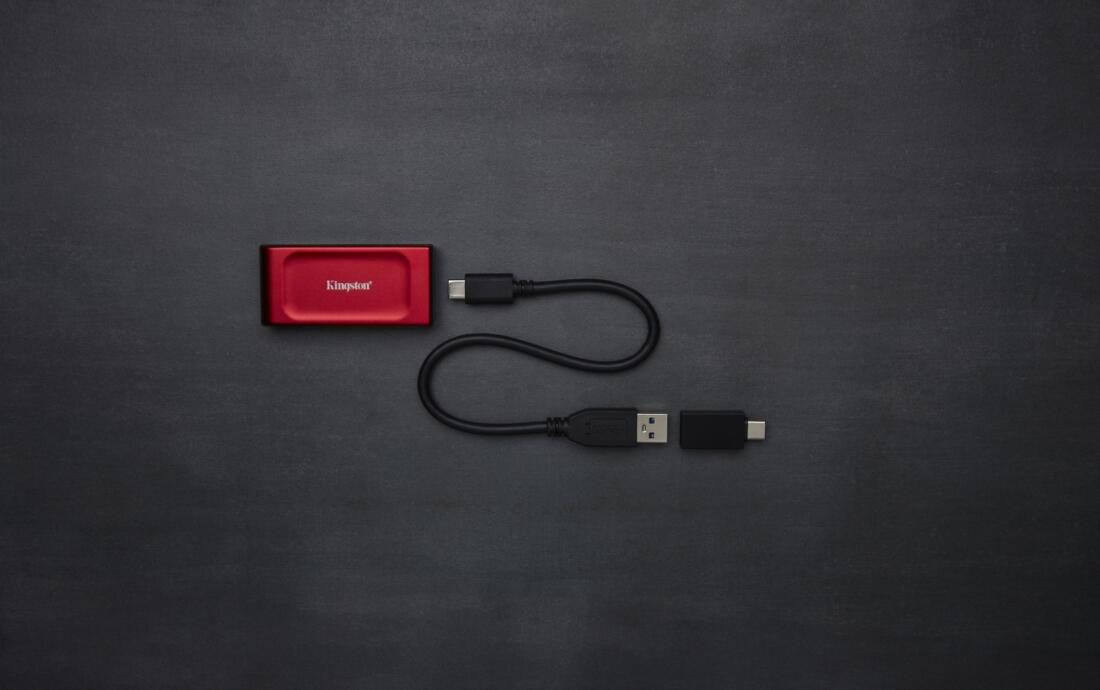
Los External SSDs They are more durable and faster, plus they are generally smaller than HDDs, making them more portable. The Kingston Solid State Drive with Type “C” connector is an excellent option for personal or work backups. By reaching speeds of up to 2000MB/s in reading, 2000 MB/s and writing, you will find a specification tailored to the needs of any user. This is an external SSD USB 3.2 Gen 2×2, which allows you to reduce the waiting time for the transfer of data from one device to another of a Solid State Drive or Kingston device, is supported by a FIPS 197 approval and incorporates 256-bit AES encryption in XTS mode. The color touch screen supports the option of two passwords (administrator and user) to ensure that your data is protected at all times.
Kingston can also offer you various storage options for different needs, such as memory USB y SD and microSD memory cards. It is a reliable storage method for personal photos, music, videos and documents, keeping them protected and accessible.
If you choose the right storage and follow these simple recommendations: Backup processes will not be a worry!




Latest news

Outstanding sector